Creating Properties
How to add and configure new properties in Rentigo
Adding properties is the first step to building your portfolio in Rentigo. This guide walks you through the property creation process for both long-term and short-term rentals.
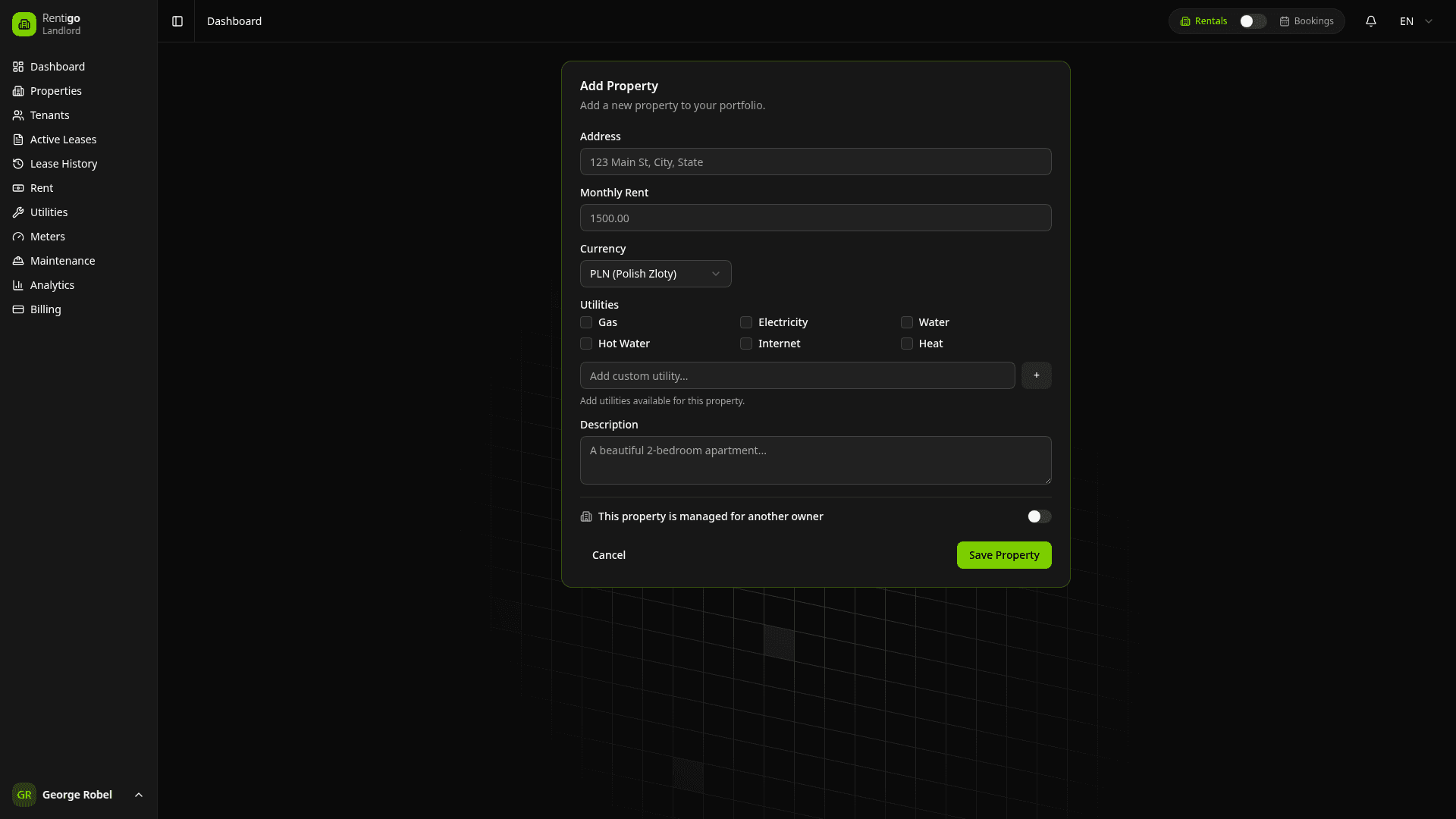
Adding a New Property
Navigate to Properties
Click Properties in the sidebar, then click the Add Property button.
Enter Address
Provide the full street address of the property. Rentigo will check for duplicates automatically.
Select Country
Choose the country where the property is located. This affects:
- Currency options
- Tax reporting features
- Guest registration requirements (Spain: SES.HOSPEDAJES)
Set Currency & Rent
Select your currency (PLN or EUR) and enter the monthly rent amount. For STR properties, this represents the nightly rate.
Add Description (Optional)
Add notes about the unit — floor number, parking spot, access codes, or other details.
Select Utilities
Choose which utilities apply to this property (gas, electricity, water, etc.). This enables meter tracking and bill management.
Save Property
Click Save Property to add it to your portfolio.
Basic Settings
Address & Description
- Address — The full street address (required)
- Description — Optional notes about the unit (e.g., "2nd floor, south-facing, balcony")
Use the description for internal notes. For guest-facing information (STR), use Property Knowledge instead.
Currency & Rent Amount
Set the rent in your chosen currency:
| Currency | Countries |
|---|---|
| PLN | Poland |
| EUR | Spain, Germany, and other EU countries |
You can change the rent amount anytime. Changes apply to future records, not existing ones.
Managed Properties
If you manage properties for other owners, toggle "This property is managed for another owner".
Owner Information
For managed properties, store:
- Owner Name — Full name of the property owner
- Owner Email — Contact email for reports
- Owner Phone — Optional phone number
Management Features (Pro)
With Pro, managed properties unlock:
- Management View — Dedicated dashboard for owner data
- Fee Configuration — Management fees, cleaning fees, finder's fees
- Owner Reports — Generate monthly/yearly reports with income breakdown
Property Knowledge (STR)
For short-term rental properties, configure Property Knowledge to help the AI assistant answer guest questions.
Navigate to Property Details → Knowledge to add:
| Category | Examples |
|---|---|
| WiFi | Network name and password |
| Check-in | Access instructions, lockbox codes, key locations |
| Check-out | Departure procedures, trash disposal |
| House Rules | Smoking, pets, quiet hours, max guests |
| Parking | Location, permits, costs |
| Amenities | Special features, equipment available |
| Appliances | How to use washing machine, coffee maker, etc. |
| Heating/Cooling | Thermostat instructions, AC controls |
| Emergency | Contact numbers, first aid location |
| Nearby | Restaurants, shops, attractions |
| Transport | Public transit, taxi, airport transfers |
| Custom FAQ | Property-specific questions |
The more complete your property knowledge, the better Rigo can assist guests without bothering you.
Duplicate Detection
Rentigo automatically checks for similar addresses when you add a property:
- You'll see a warning with the matching property
- Review the existing property to confirm it's different
- Proceed if it's genuinely a new unit
Editing Properties
Navigate to Property
Go to Properties and click on the property card.
Click Edit
Click the Edit button in the property header.
Make Changes
Update address, rent, utilities, or owner details as needed.
Save
Click Save to apply your changes.
Disabling Properties
You can temporarily disable a property without deleting it:
- Go to Property Details → Settings
- Click Disable Property
- The property is hidden from dashboards but data is preserved
Re-enable anytime to restore full functionality.
Deleting Properties
Deleting a property is permanent. All associated data (leases, payments, bookings, maintenance) will be lost.
Before deleting, ensure:
- No active leases or upcoming bookings exist
- You've exported any data you need
- You understand this is irreversible
Next Steps
- Utility Types — Configure utilities and meters
- Invite a Tenant — For long-term rentals
- Add Bookings — For short-term rentals
- Configure Equipment — Track appliances and maintenance (Pro)