Typy mediów
Konfiguracja i zarządzanie typami mediów dla nieruchomości
Media w Rentigo pomagają śledzić i rozliczać najemców za usługi takie jak gaz, prąd, woda i inne.
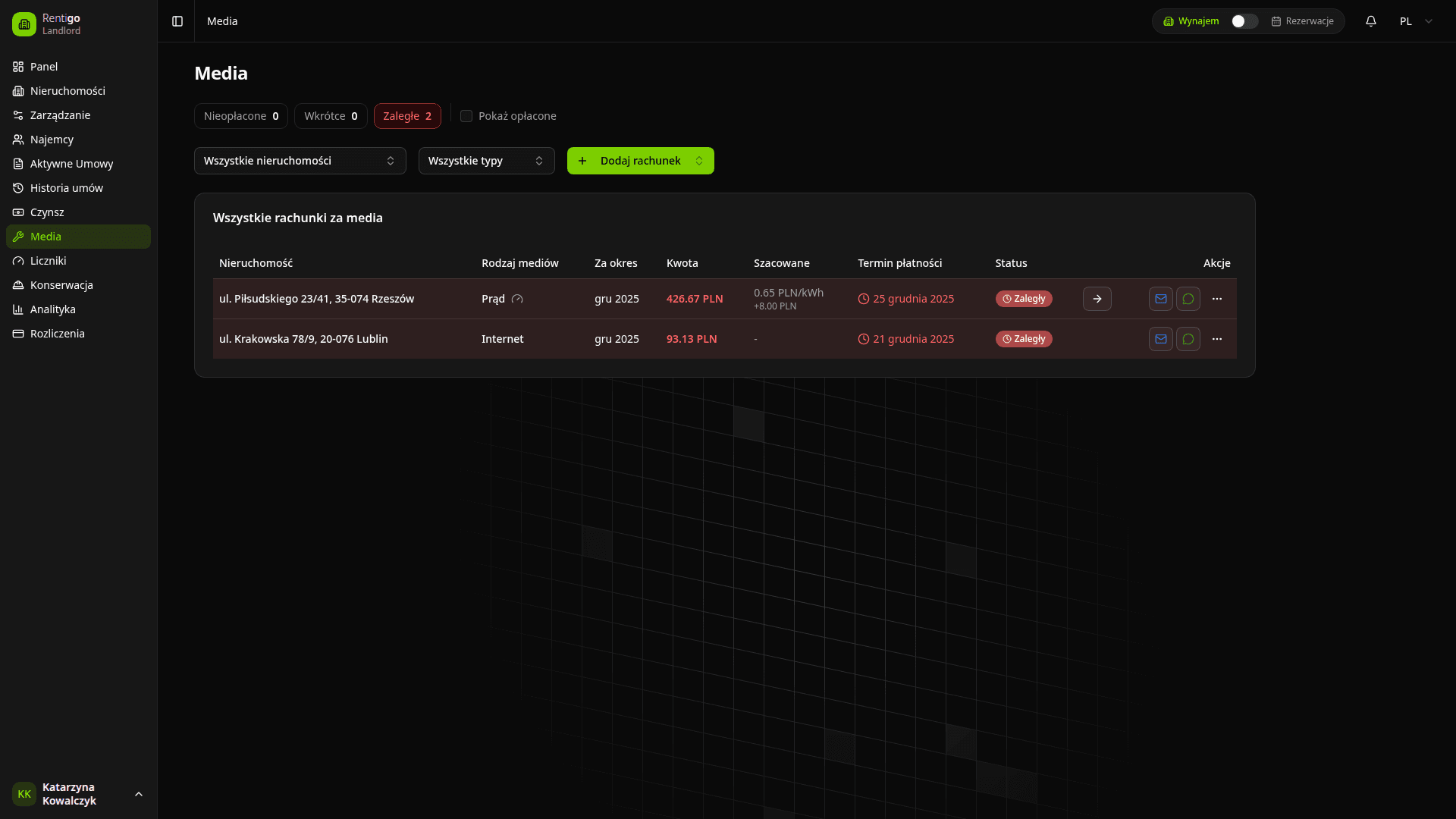
Typy mediów
Rentigo obsługuje zarówno standardowe, jak i własne typy mediów:
Standardowe media
| Medium | Opis |
|---|---|
| Gaz | Gaz ziemny lub propan |
| Prąd | Energia elektryczna |
| Woda | Dostawa wody i kanalizacja |
| Ciepła woda | Dostawa ciepłej wody (jeśli mierzona osobno) |
| Ogrzewanie | Centralne ogrzewanie (jeśli oddzielne od gazu) |
| Internet | Łącze szerokopasmowe lub światłowodowe |
Własne media
Możesz dodać własne typy mediów dla dowolnych opłat cyklicznych:
- Opłaty za garaż lub parking
- Usługi ochrony
- Wywóz śmieci
- Opłaty wspólnoty mieszkaniowej
- Inne koszty cykliczne
Aby dodać własne medium, po prostu wpisz nazwę w selektorze mediów i naciśnij Enter. Zostanie dodane do dostępnych opcji.
Włączanie mediów w nieruchomości
Edytuj nieruchomość
Przejdź do nieruchomości i kliknij Edytuj.
Wybierz media
W sekcji mediów zaznacz pola dla każdego typu medium, który dotyczy tej nieruchomości.
Zapisz zmiany
Kliknij Zapisz, aby włączyć wybrane media.
Dodawanie rachunków za media
Po włączeniu mediów możesz rejestrować rachunki:
Przejdź do Mediów
Przejdź do Media w głównym menu lub kliknij Dodaj rachunek z karty nieruchomości.
Wybierz nieruchomość i medium
Wybierz nieruchomość i typ medium dla tego rachunku.
Wprowadź szczegóły
Wypełnij kwotę rachunku, termin płatności i opcjonalne notatki.
Zapisz rachunek
Kliknij Zapisz, aby utworzyć rekord rachunku.
Status rachunku
Rachunki za media mogą mieć następujące statusy:
| Status | Opis |
|---|---|
| Nieopłacony | Rachunek jest do zapłaty |
| Zbliża się termin | Rachunek zbliża się do terminu płatności |
| Zaległy | Po terminie płatności i wciąż nieopłacony |
| Opłacony | Rachunek został rozliczony |
Śledzenie liczników
ProDla użytkowników Pro, media mogą być powiązane z licznikami dla zaawansowanego śledzenia:
- Odczyty liczników - Rejestruj zużycie w czasie
- Wykresy zużycia - Wizualizuj trendy zużycia
- Wykrywanie anomalii - Otrzymuj alerty o nietypowych wzorcach zużycia
Zobacz sekcję Liczniki i media dla szczegółowej konfiguracji liczników.
Dobre praktyki
- Włączaj tylko odpowiednie media - Nie włączaj mediów, które nie mają zastosowania, aby uniknąć zamieszania
- Rejestruj rachunki na bieżąco - Wprowadzaj rachunki, gdy tylko je otrzymasz, aby zachować dokładne rejestry
- Używaj spójnego nazewnictwa - Dla własnych mediów używaj spójnych nazw we wszystkich nieruchomościach
- Ustalaj realistyczne terminy - Daj najemcom wystarczająco czasu na zapłatę
Następne kroki
- Typy liczników - Konfiguruj liczniki dla szczegółowego śledzenia (Pro)
- Śledzenie czynszu - Zarządzanie płatnościami czynszu