Property Setup
Learn how to add and configure your properties in Rentigo
Adding your properties is the first step in organizing your portfolio in Rentigo. This guide covers how to create a property, configure utilities, and set up management details.
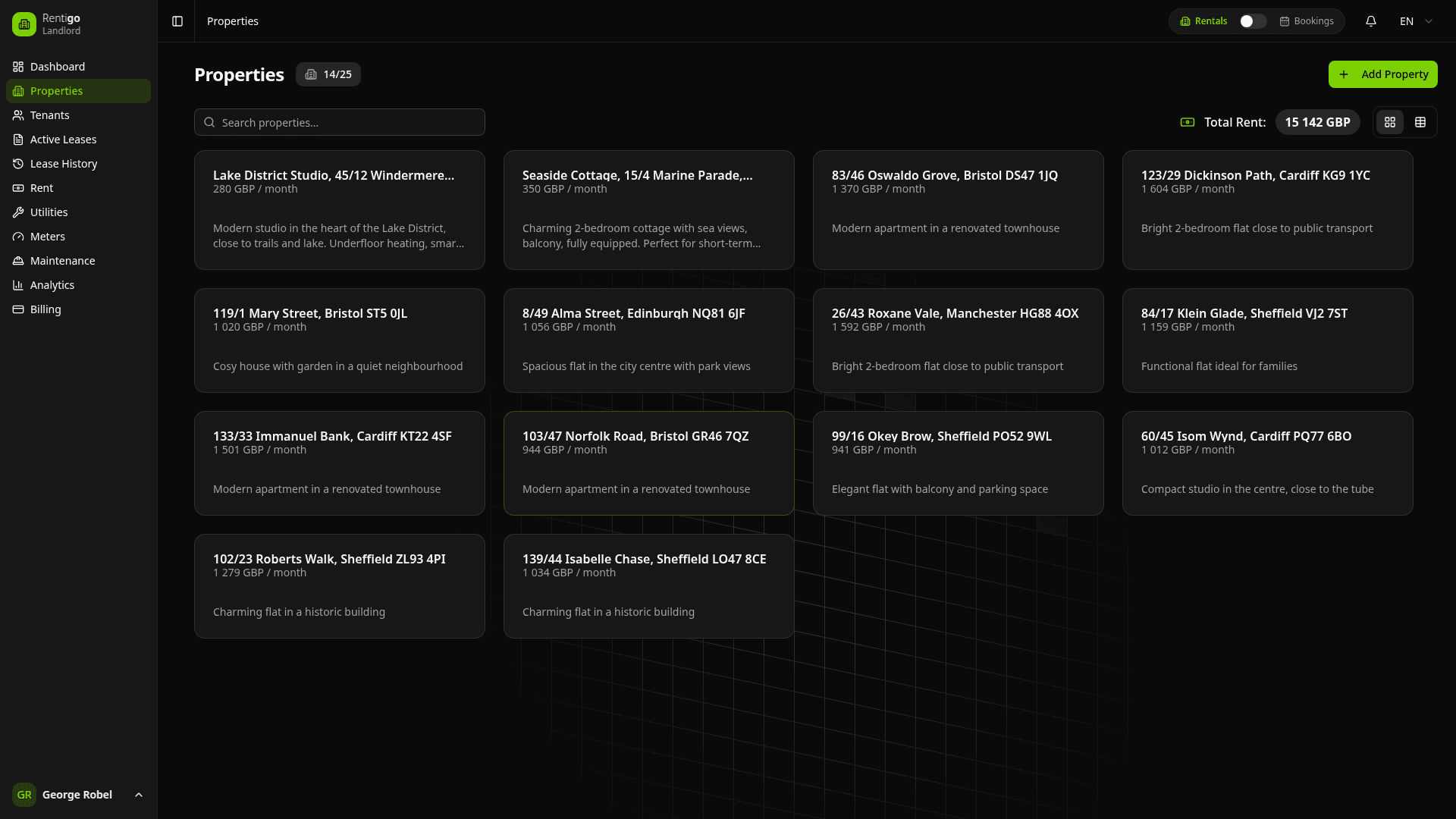
Adding a New Property
To add a property, follow these steps:
Navigate to Properties
Click on Properties in the main sidebar.
Click Add Property
Click the Add Property button in the top right corner.
Enter Basic Details
Fill in the property address, description, and monthly rent amount. Select the currency (PLN or EUR).
Select Country
Choose the country where the property is located. This affects tax reporting requirements and available features.
Properties in Spain automatically enable the SES.HOSPEDAJES guest registration system for short-term rentals.
Select Utilities
Choose which utilities apply to this property (e.g., Gas, Electricity, Water, Heat, Internet). This enables meter tracking and utility bill management.
Managed Properties (Optional)
If you manage this property for another owner, toggle "This property is managed for another owner" and enter the owner's details (Name, Email, Phone).
For Pro and higher tiers, adding an owner enables the Management View with fee configuration for management fees, cleaning fees, and tenant finding fees.
Save
Click Save Property to add it to your dashboard.
Property Types
Rentigo automatically adapts based on how you use each property:
Long-Term Rental Properties
Properties with active tenant leases. Features include:
- Monthly rent generation
- Utility bill tracking
- Meter reading management
- Lease document storage
Short-Term Rental Properties
Properties with booking guests. Features include:
- Booking calendar
- Guest portal with check-in instructions
- Property knowledge base for AI assistant
- Access code management (with smart lock integration)
A property can transition between modes — start with bookings, then add a long-term tenant when ready.
Property Knowledge (STR)
For short-term rental properties, you can configure Property Knowledge — information that the AI assistant uses to answer guest questions.
Navigate to Property Details → Knowledge to add:
- WiFi credentials — Network name and password
- Check-in/out instructions — How to access the property
- Check-in/out times — Standard arrival and departure times
- House rules — Smoking, pets, noise policies
- Parking information — Where and how to park
- Amenities notes — Special features and equipment
- Appliance instructions — How to use specific appliances
- Heating/cooling info — Thermostat and climate control
- Emergency contact — Who to call in emergencies
- Nearby info — Restaurants, shops, attractions
- Transport info — How to get around
- Custom FAQ — Common questions and answers
The more complete your property knowledge, the better Rigo can assist your guests without needing to contact you.
Utility Configuration
When you add a property, you can specify which utilities are active. This enables specific features:
- Meter Tracking — Record readings for each utility type
- Utility Bills — Track bills and payments per utility
- Anomaly Detection — Get alerts for unusual consumption
Custom Utilities
In addition to standard types (Gas, Electricity, Water, Heat, Internet), you can add Custom Utilities (e.g., "Garage Fee", "Security"). Type the name in the selector and press Enter.
You can edit utility types at any time from the property details page.
Duplicate Detection
Rentigo automatically checks if you're adding a property with an address similar to one already in your portfolio. If a potential duplicate is found, you'll see a warning before proceeding.
Property Status
Properties can be in different states:
| Status | Description |
|---|---|
| Active | Normal operation, visible in dashboard |
| Disabled | Temporarily hidden, no rent generation |
To disable a property, go to Property Details → Settings → Disable Property. You can re-enable it at any time.
Next Steps
Once your property is created, you can:
- Invite a tenant — For long-term rentals
- Add bookings — For short-term rentals
- Configure meters — Track utility consumption (Pro)
- Add equipment — Track appliances and maintenance (Pro)