Readings
Recording and managing meter readings
Regular meter readings are essential for accurate consumption tracking and utility billing. Readings can be recorded by you or submitted by tenants through their portal.
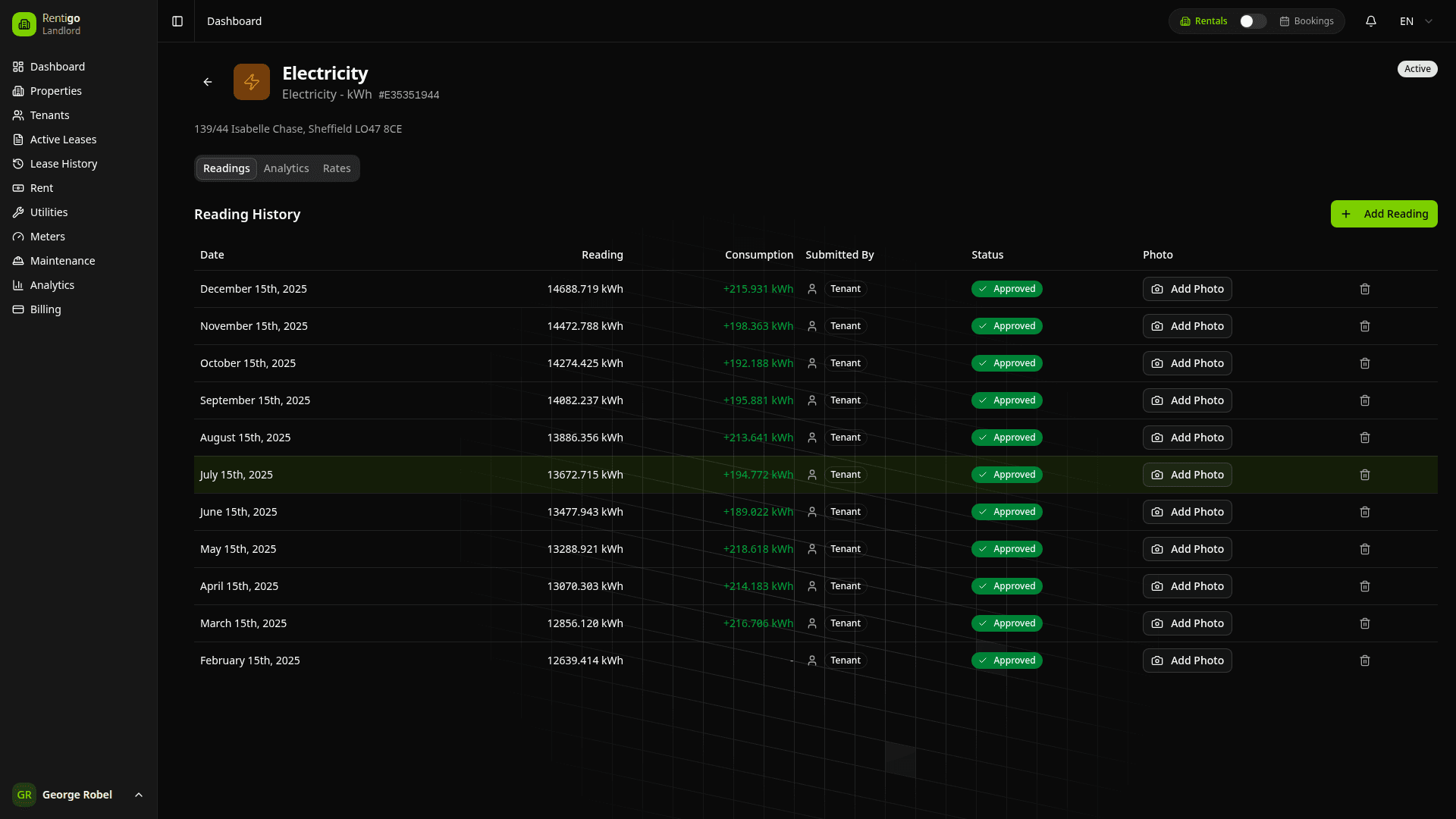
Recording Readings (Landlord)
Navigate to Meter
Go to Meters and select the meter you want to update.
Click Add Reading
Click the Add Reading button.
Enter Value
Type the current meter display value exactly as shown on the meter.
Set Date
Enter the date the reading was taken. Defaults to today.
Upload Photo (Optional)
Attach a photo of the meter display for verification.
Add Notes (Optional)
Include any relevant notes (e.g., "estimated reading" or "after meter replacement").
Save
Click Save to record the reading.
Tenant Submissions
Tenants can submit their own meter readings from their portal, reducing your workload and increasing transparency.
Enabling Tenant Submissions
Navigate to Meter
Go to the meter you want to configure.
Open Settings
Click Settings or the gear icon.
Enable Submissions
Toggle Allow Tenant Submissions to on.
Configure Options
Set submission preferences:
- Require Photo — Tenant must upload photo proof
- Auto-Approve — Automatically accept submissions (or require your review)
- Submission Reminder — Send reminders when readings are due
Save
Click Save to enable tenant submissions.
Tenant Experience
From their portal, tenants:
- See a list of meters for their property
- Click Submit Reading on a meter
- Enter the current value
- Take/upload a photo of the meter (if required)
- Submit for your review (or auto-approval)
Tenants can also ask Rigo questions like "When was my last meter reading?" or "How much electricity did I use this month?"
Reviewing Submissions
If auto-approve is off, you'll receive notifications when tenants submit readings:
View Pending
Go to Meters → Pending Submissions or click the notification.
Review Details
Check the submitted value, date, and photo.
Approve or Reject
- Approve — Accept the reading, consumption is calculated
- Reject — Decline with a reason, tenant can resubmit
Approved submissions are indistinguishable from landlord-entered readings in the history.
Photo Verification
When photo requirement is enabled:
- Tenant must upload an image of the meter display
- Photo is stored with the reading
- You can view photos when reviewing submissions
- Photos serve as evidence in case of disputes
Review photos carefully. Ensure the displayed value matches what the tenant entered.
Understanding Consumption
Consumption is calculated automatically:
Consumption = Current Reading - Previous Reading
Rentigo displays:
| Field | Description |
|---|---|
| Reading Value | The meter display at time of recording |
| Date | When the reading was taken |
| Consumption | Usage since the previous reading |
| Daily Average | Consumption divided by days between readings |
| Source | Who submitted (landlord or tenant) |
Reading Frequency
| Utility | Recommended Frequency |
|---|---|
| Electric | Monthly |
| Gas | Monthly |
| Water | Monthly or bi-weekly |
| Heat | Monthly during heating season |
More frequent readings provide more accurate consumption data and earlier anomaly detection. Consider enabling tenant submissions for more frequent data.
Setting Reading Reminders
You can configure automatic reminders:
- Go to meter settings
- Enable Reading Reminders
- Set the reminder schedule (e.g., monthly on the 1st)
- Choose recipients (you, tenant, or both)
Reminders are sent via email, prompting the appropriate party to submit a reading.
Reading History
Each meter maintains a complete history:
- All recorded readings (landlord and tenant)
- Calculated consumption between readings
- Daily averages for each period
- Photos attached to readings
- Notes and annotations
- Source of each reading
Viewing History
- Go to the meter detail page
- Scroll to the readings table
- Use filters to view specific date ranges
- Click a reading to see details and photos
- Export data for external analysis
Editing Readings
If a reading was entered incorrectly:
Find the Reading
Locate the reading in the meter's history.
Click Edit
Click the edit icon next to the reading.
Correct the Value
Update the reading value, date, or notes.
Save
Click Save to update.
Editing readings recalculates consumption for affected periods. Review the changes carefully.
Deleting Readings
To remove an erroneous reading:
- Find the reading in history
- Click the delete icon
- Confirm deletion
- Consumption is recalculated
Deleting readings affects consumption calculations. Only delete truly erroneous entries.
Estimated Readings
If you can't access the meter, you can record estimated readings:
- Add a reading as normal
- Check "This is an estimate"
- Add a note explaining why
Estimated readings are marked in the history and can be corrected later when actual readings are available.
Meter Rollovers
When a meter reaches its maximum value and resets to zero:
- Record the final reading before rollover
- Add a note indicating "meter rolled over"
- Record the new reading after rollover
- Rentigo handles the calculation automatically
Configure your meter's maximum digits to help Rentigo detect rollovers automatically.
Bulk Reading Entry
For properties with multiple meters:
- Go to Meters → Add Readings
- Select the property
- Enter readings for all meters at once
- Save all readings together
This is useful for monthly meter reading rounds.
Best Practices
- Enable tenant submissions — Reduces your workload and increases data frequency
- Require photos — Provides verification and reduces disputes
- Consistent schedule — Read meters on the same day each month
- Verify values — Double-check readings (yours and tenant submissions) before saving
- Note anomalies — Record anything unusual (e.g., "meter replaced", "tenant moved out")
- Regular review — Check consumption trends monthly
- Act on alerts — Respond quickly to anomaly notifications
Next Steps
- Anomaly Detection — Get alerts for unusual consumption
- Meter Types — Configure different meters
- Utility Types — Link to utility bills