Utility Types
Setting up and managing utility types for your properties
Utilities in Rentigo help you track and bill tenants for services like gas, electricity, water, and more.
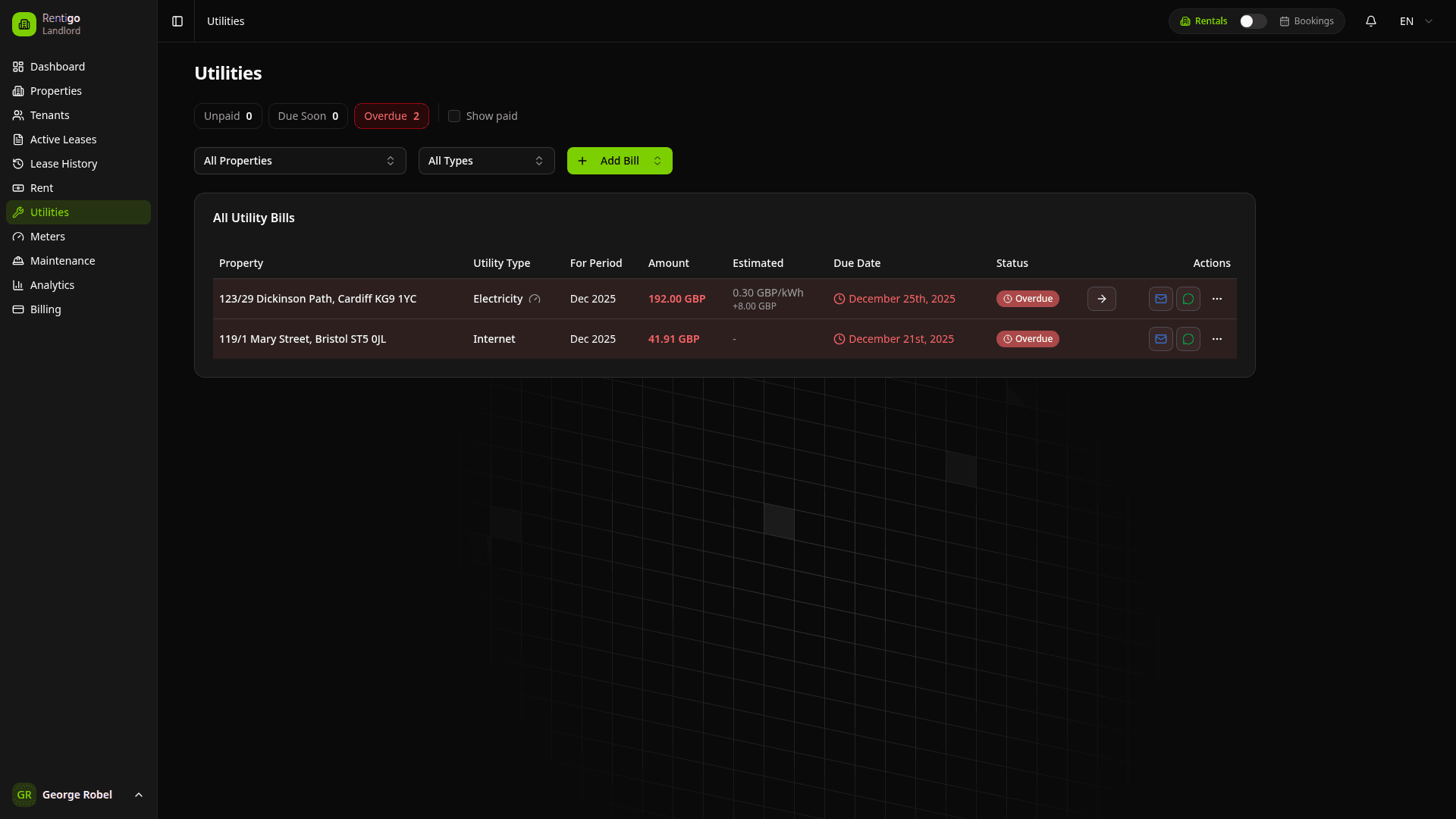
Utility Types
Rentigo supports both standard and custom utility types:
Standard Utilities
| Utility | Description |
|---|---|
| Gas | Natural gas or propane |
| Electricity | Electric power |
| Water | Water supply and sewage |
| Hot Water | Hot water supply (if metered separately) |
| Heat | Central heating (if separate from gas) |
| Internet | Broadband or fiber connection |
Custom Utilities
You can add custom utility types for any recurring charges:
- Garage or parking fees
- Security services
- Trash collection
- HOA fees
- Building maintenance
- Any other recurring cost
To add a custom utility, type the name in the utility selector and press Enter. It will be added to your available options.
Enabling Utilities on a Property
Edit Property
Go to the property and click Edit.
Select Utilities
In the utilities section, check the boxes for each utility type that applies to this property.
Save Changes
Click Save to enable the selected utilities.
Adding Utility Bills
Once utilities are enabled, you can record bills:
Navigate to Utilities
Go to Utilities in the main menu, or click Add Bill from a property card.
Select Property & Utility
Choose the property and utility type for this bill.
Enter Details
Fill in the bill amount, due date, and optional notes.
Upload Invoice (Optional)
Attach the invoice PDF or image for your records.
Save Bill
Click Save to create the bill record.
Invoice OCR Scanning
ProRentigo can automatically extract information from uploaded invoices:
- Upload an invoice image or PDF
- Click Scan Invoice
- Rentigo extracts:
- Bill amount
- Due date
- Period covered
- Provider name
- Review and confirm the extracted data
OCR works best with clear, well-lit photos of invoices. Crumpled or poorly lit images may need manual entry.
Bill Status
Utility bills can have the following statuses:
| Status | Description |
|---|---|
| Unpaid | Bill is outstanding |
| Due Soon | Bill is approaching its due date |
| Overdue | Past the due date and still unpaid |
| Paid | Bill has been settled |
Marking Bills as Paid
Find the Bill
Navigate to Utilities and locate the bill.
Mark as Paid
Click the Mark Paid button or toggle the paid status.
Enter Payment Details (Optional)
Add payment date and any notes about the payment method.
Meter Tracking
ProFor Pro users, utilities can be linked to meters for advanced tracking:
- Meter Readings — Record consumption over time with photo proof
- Usage Charts — Visualize consumption trends
- Cost Calculation — Automatic cost based on unit rates
- Anomaly Detection — Get alerts for unusual usage patterns
- Tenant Submission — Tenants can submit readings from their portal
See the Meters section for detailed meter configuration and usage.
Notifications
Configure notifications for utility bills:
| Notification | Description |
|---|---|
| Due Date Reminder | Alert before a bill is due |
| Overdue Alert | Notification when a bill is past due |
| Payment Confirmation | Confirmation when a bill is marked paid |
Notifications can be sent via email or WhatsApp (Pro).
Best Practices
- Enable only relevant utilities — Don't enable utilities that aren't applicable
- Record bills promptly — Enter bills as soon as you receive them
- Use consistent naming — For custom utilities, use consistent names across properties
- Attach invoices — Upload scans for documentation
- Set realistic due dates — Give tenants adequate time to pay
- Link to meters — Connect bills to meter readings for accurate tracking
Next Steps
- Meters — Configure meters for detailed tracking (Pro)
- Rent Tracking — Managing rent payments
- Analytics — View utility cost trends