Inviting Tenants
How to onboard your tenants to the Rentigo platform
Onboarding tenants allows them to access the Tenant Portal, where they can view their lease, submit meter readings, pay rent online, and submit maintenance requests.
This guide covers long-term tenant onboarding. For short-term rental guests, see Bookings.
How to Invite a Tenant
You can initiate a tenant invitation from two places:
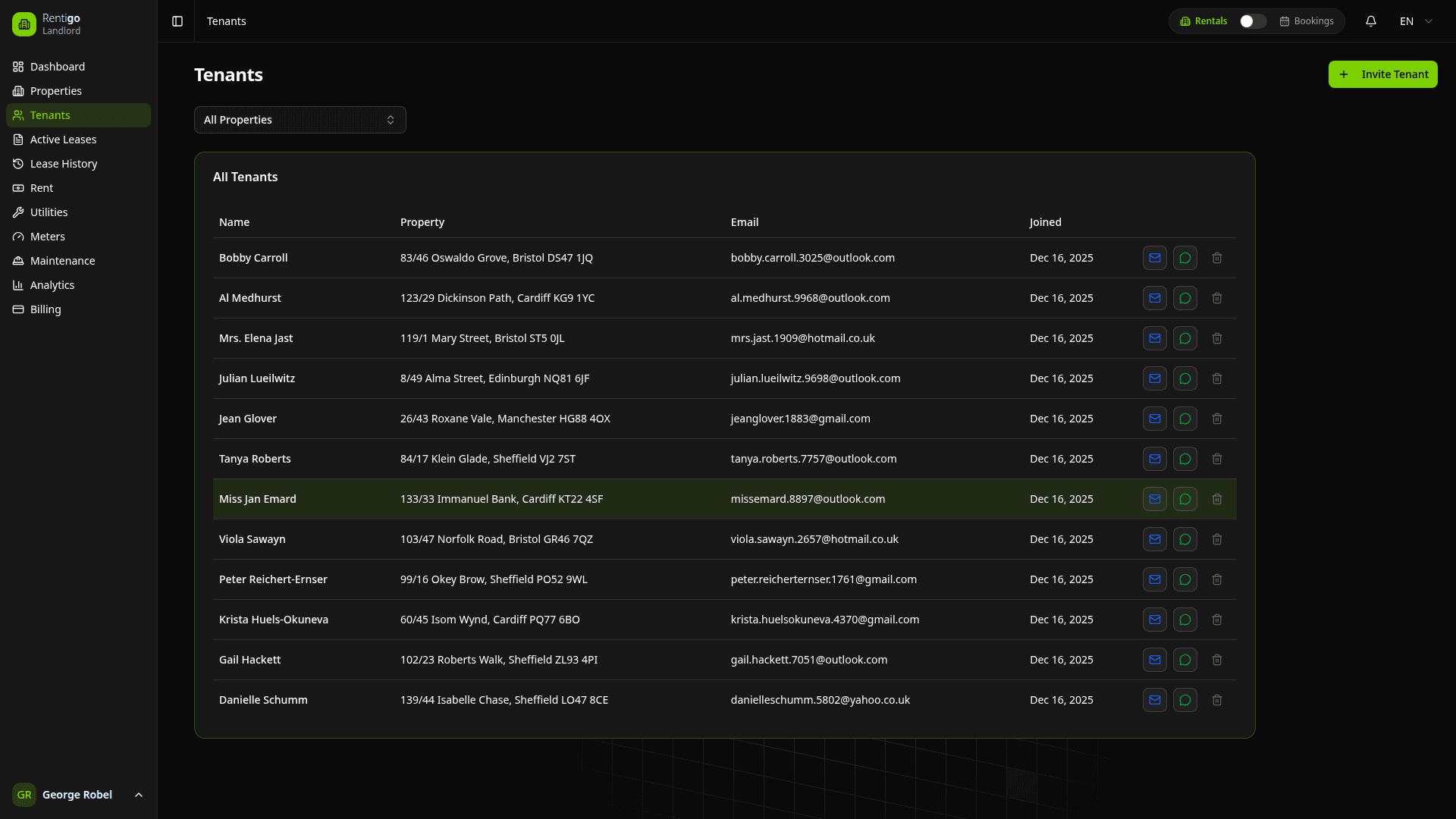
- From Tenants List: Click Invite Tenant — you'll be prompted to select a property first.
- From Property Details: Click Invite Tenant directly from the property header.
Sending the Invitation
Enter Email Address
Enter the tenant's email address. This is where the secure invitation link will be sent.
Set Lease Dates
Enter the Start Date and End Date for the lease. These dates will be used to automatically generate the lease agreement.
Set Rent Amount
Confirm or adjust the monthly rent amount for this specific lease.
Select Language
Choose the language for the invitation email (English, Polish, German, Spanish). This ensures clear instructions for your tenant.
Send Invitation
Click Send Invitation. The tenant will receive an email immediately with a secure link.
What the Tenant Sees
When your tenant clicks the invitation link, they'll be guided through:
- Account Creation — Set up their Rentigo account with name, password, and optional profile details.
- Lease Acceptance — Review and accept the lease terms.
- Portal Access — Immediate access to their tenant portal.
Automatic Lease Creation
Unlike many platforms, you don't need to create a lease manually after an invitation.
The lease is created automatically the moment the tenant clicks the link and completes their registration.
The system uses the dates you provided during the invitation process to set up the active lease record.
Tracking Invitation Status
Monitor invitations in the Tenants table or the Property Details page:
| Status | Description |
|---|---|
| Pending Registration | Invitation sent, tenant hasn't registered yet |
| Active | Tenant accepted, lease is now in effect |
| Expired | Invitation expired (7 days), needs resending |
Invitations expire after 7 days for security. If a tenant hasn't registered by then, send a new invitation.
Existing Tenants
If you're adding an existing tenant to a new property (e.g., they're renting a second unit):
- Go to the new property's details page.
- Click Invite Tenant.
- Enter their existing email address.
- They'll receive a simplified invitation to accept the new lease without creating a new account.
Tenant Portal Features
Once active, tenants can access:
- Lease Details — View lease dates and rent amount
- Rent Payments — Pay rent online (if enabled)
- Meter Readings — Submit utility readings with photos
- Maintenance Requests — Report issues and track resolution
- Documents — Access lease documents and receipts
Next Steps
Once your tenant is active:
- Track Rent Payments — Monitor and record payments
- Manage Meters — Set up utility tracking
- Handle Maintenance — Process tenant requests