Lease Creation
How leases are automatically generated in Rentigo
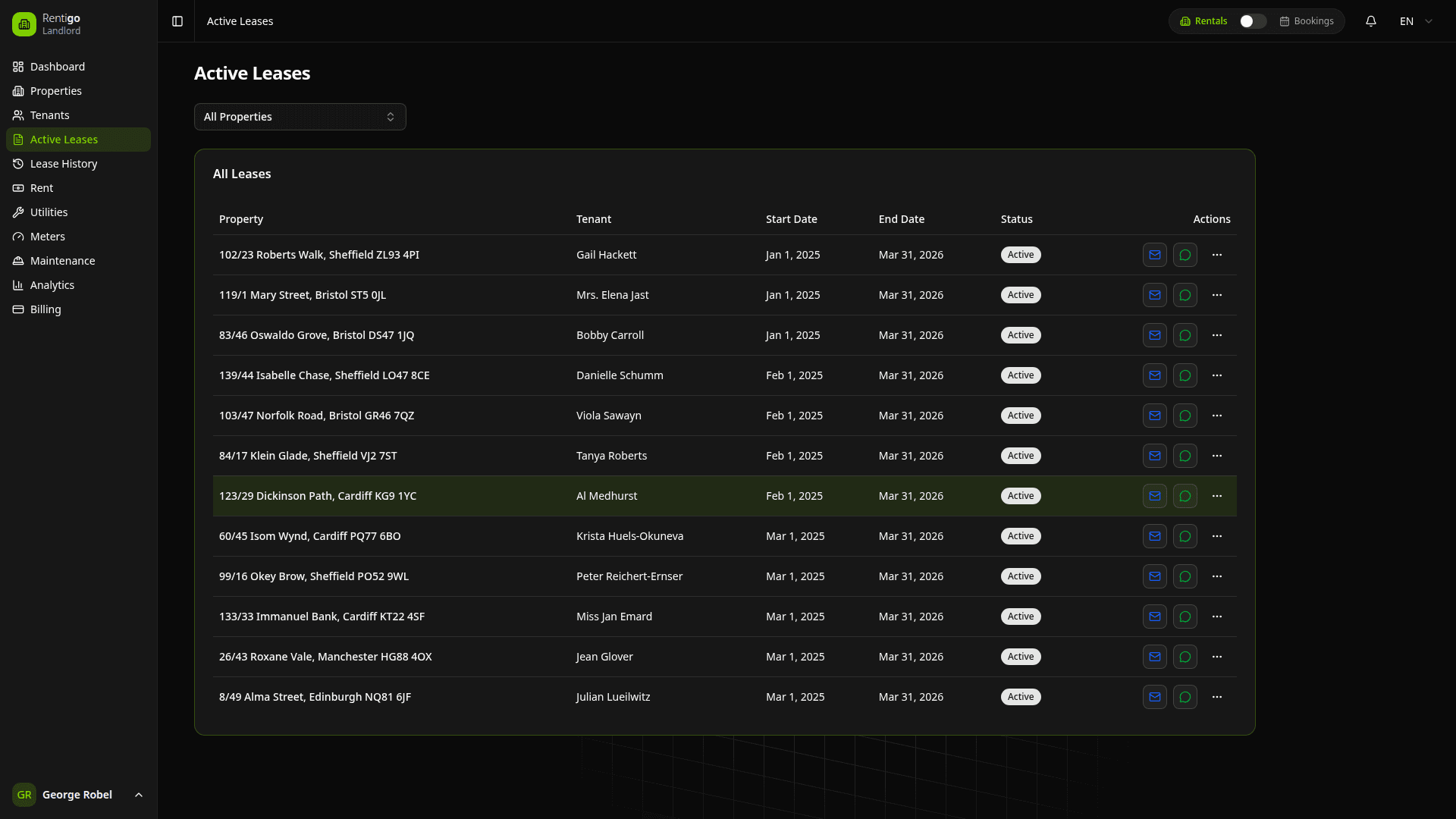
In Rentigo, lease agreements are automatically created when tenants accept their invitation. This ensures data integrity and proper tenant linking.
Automated Creation Only
To ensure data integrity and proper tenant linking, Rentigo does not allow manual creation of lease records.
Leases are automatically created when a tenant accepts an invitation.
How It Works
You Invite a Tenant
When sending an invitation, you specify the Lease Start Date, End Date, and Rent Amount.
Tenant Accepts
The tenant receives an email and clicks the link to register (or logs in if they already have an account).
Lease Generated
The moment they join the property, the system generates the active lease record using the dates and rent amount you provided.
This ensures that every active lease in the system corresponds to a real, verified tenant with portal access.
Lease Status Lifecycle
Leases move through several statuses:
| Status | Description |
|---|---|
| Pending | Invitation sent, waiting for tenant to accept |
| Active | Tenant accepted, lease is in effect |
| Ended | Lease reached its end date |
| Terminated | Lease ended early (eviction, mutual agreement, etc.) |
Multiple Properties
A single tenant can rent multiple properties simultaneously:
- Go to the new property's details page.
- Click Invite Tenant.
- Enter the tenant's existing email address.
- They'll receive an invitation and can accept the new lease without creating a new account.
One Tenant per Property: A property can only have one active tenant/lease at a time. To change tenants, first terminate the existing lease.
Terminating a Lease
To end a lease early:
- Navigate to Leases and find the active lease.
- Click Terminate Lease.
- Select a termination reason and date.
- Confirm the termination.
The tenant will lose portal access to that property, but their account remains for other properties.
Lease Documents
Once the lease is active, you can attach documents:
Uploading Documents
- Navigate to the lease details page.
- Go to the Documents section.
- Click Upload Document.
- Select your PDF file (signed lease agreement, addendums, etc.).
OCR Scanning
Rentigo can automatically extract key information from uploaded lease documents:
- Lease dates
- Rent amount
- Tenant information
- Property address
Upload your signed lease PDF and Rentigo will verify it matches the lease record, alerting you to any discrepancies.
Lease History
View the complete history of leases for any property:
- Navigate to Lease History in the sidebar.
- Filter by property, status, or date range.
- View past tenants, lease terms, and related documents.
This historical record is valuable for:
- Tax documentation
- Rental history verification
- Dispute resolution
Rent Generation
Active leases automatically generate monthly rent entries:
- Rent is generated on the 1st of each month (or your configured date).
- The amount matches the lease agreement.
- Tenants can view and pay their rent from the portal.
See Rent Tracking for details on managing rent payments.
Next Steps
Now that your lease is active:
- Track Rent Payments — Monitor rent collection
- Set Up Meters — Track utility consumption
- Manage Deposits — Track security deposits